
For most features of MyRoute-app, an account is required. Therefore, in this guide you will learn how to quickly and easily create an account for MyRoute-app. This guide is specifically intended for the website. See App – Getting started for more information about registering in the app.
ATTENTION! You use the same account for both the app and the website. You do NOT need to create a new account specifically for the app.
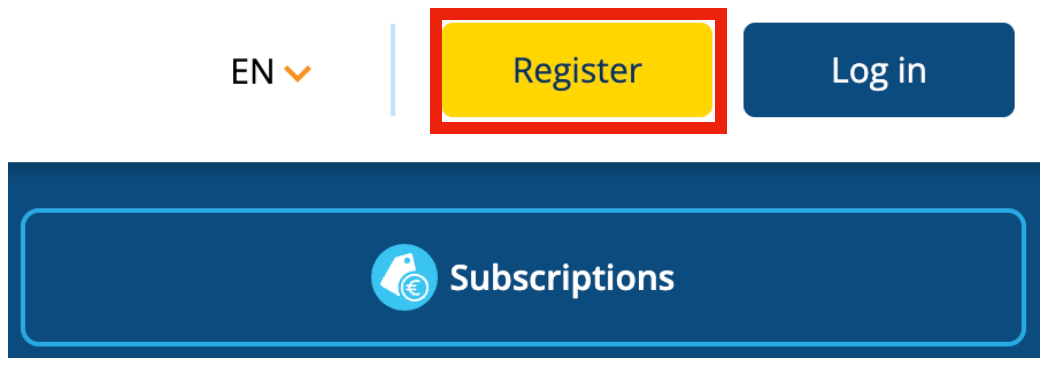
When you visit the website, you will immediately see the yellow Register button in the top-right corner. Click this button to create an account.
If you try to use a feature that requires an account, for example, when saving a route from our RouteXpert library, you will also be given the option to register.
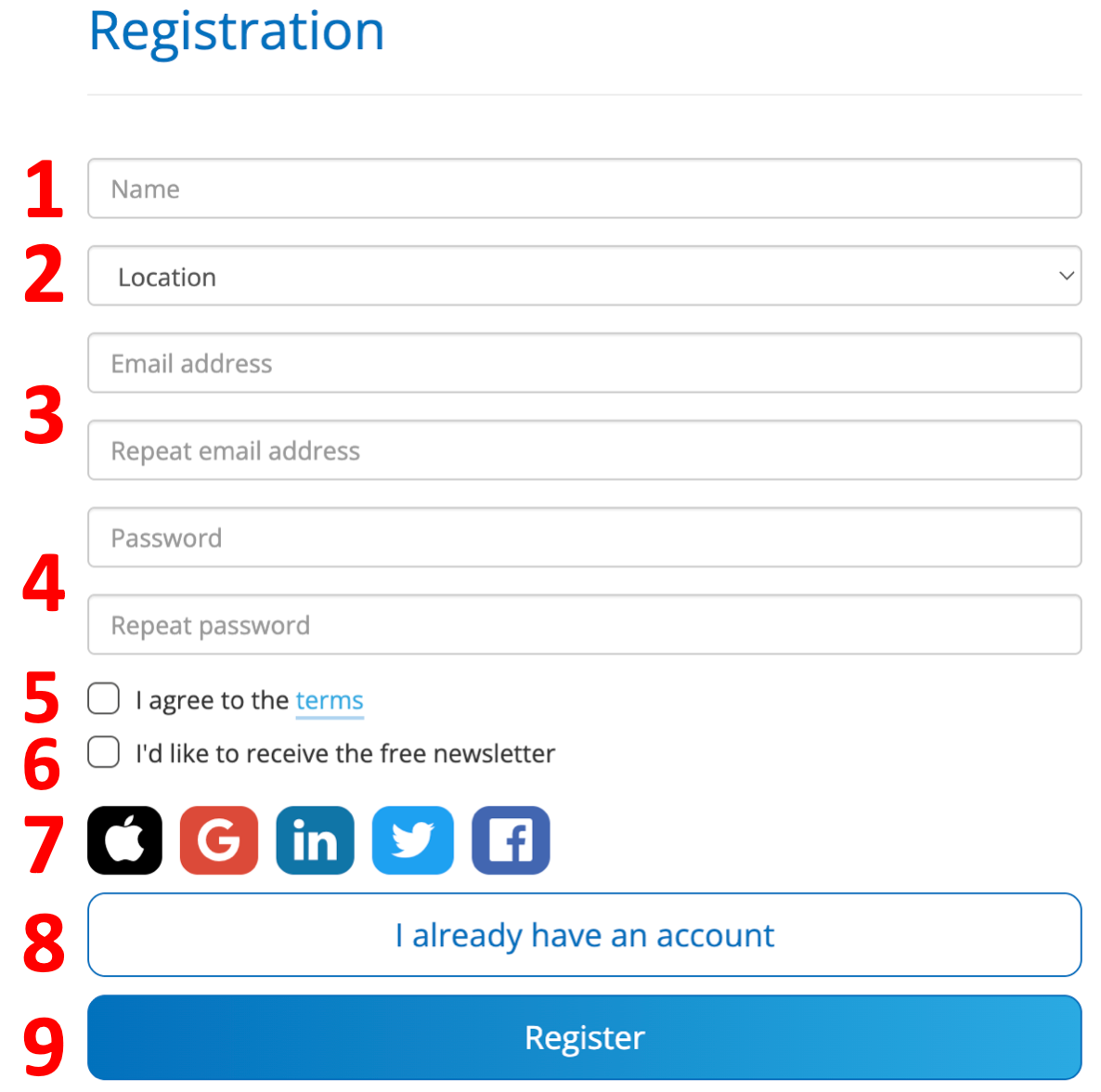
Name: Enter your (display) name here. This will be visible to other users;
Location: Enter your location here. This can be useful, for example, for determining time zones;
Email: Enter your email address here. Check that it is correct and enter it again to confirm;
Password: Create a password of your choice and enter it again to confirm;
Terms and Conditions: To create an account, the terms and conditions must be accepted;
Newsletter: Check this option if you would like to receive the newsletter;
SSO: If you prefer to log in using another social media account, select it here;
Log in: Click here to log in to MRA if you already have an account;
Register: Click here to complete your registration.
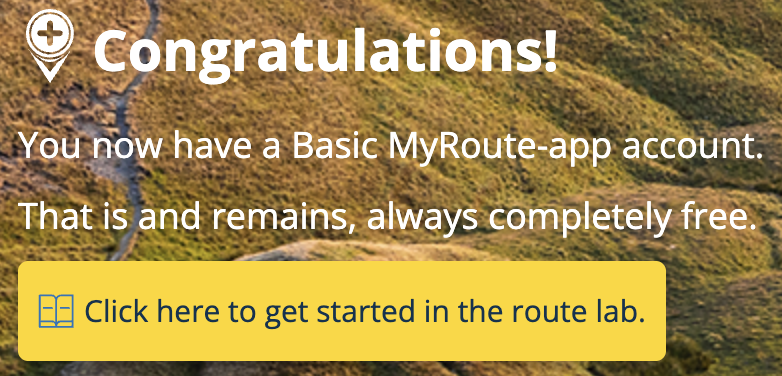 After clicking Register, you will see the following screen.
Click the yellow button to get started right away.
The Routelab (the website’s homepage) will open, and you will be logged in immediately. A guided tour will also start automatically, allowing you to quickly see all the features and possibilities at a glance.
Helpful guides
When you click on Support in Routelab, you will find many guides. Take some time to browse through the different categories if you would like to learn more about specific features.
Here are a few useful guides to get new users started: